Fault Description:
The software is detecting a change in the cutter sensor status when the cutter macro is being executed. This may be caused by several possible issues. To help pinpoint the problem, please review the troubleshooting steps below.
This guide explains the common causes and provides step-by-step troubleshooting to resolve the error and restore reliable multi‑colour filament cutting, to figure out if you need to replace CFS Extruder assembly or need toolhead PCB. This guide is primarily intended for troubleshooting the K1 CFS Upgrade Kit. However, it is also suitable for newer K2 Plus users experiencing the same error. If you are troubleshooting the K2 Plus, please refer to the dedicated support section further below.
Please double check, if you're also running latest firmware beforehand or roll-back firmware if this issue occur after software/firmware update.
TABLE OF CONTENTS
Common Causes and Troubleshooting Steps
1. Stuck Cutter
Description:
The cutter lever may be physically jammed inside the toolhead, preventing it from moving properly.
Solution:
Manually move the toolhead to the cutter location and check if the cutter can move and cut freely. Ensure there is no obstruction or resistance when the cutter is operated. Check the mechanism that push on the leaver of cutter or cutter is not broken and failing to trigger the cutting.
2. Missing Magnet
Description:
The sensor that detects the cutter position may not be triggering correctly, if the cutter and leaver does not trigger the sensor, for K2 Plus its use magnet.
Solution:
Start by verifying the mechanical function of the cutter as above. If the cutter seems functional, inspect the sensor module itself.
For K2 Plus:
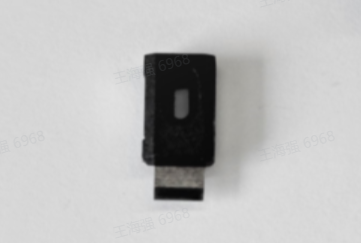
Ensure magnets are present on both sides of the cutter. If one is missing or dislodged, the sensor will not detect the cutter status. Replace the cutter or source a similarly sized magnet and reattach it using adhesive. (K2 Cutter: https://store.dremc.com.au/products/creality-k2-plus-replacement-cutter-module-assembly)
For K1 Series:
As the K1 uses a lever-based cutter that is non-replaceable, ensure that the lever is being fully activated during the cut. Feed sample filament into the extruder, run the cut macro, and check if the filament is cut cleanly. (Cutter: https://store.dremc.com.au/products/k1-series-multi-color-upgrade-kit-cutter-assembly)
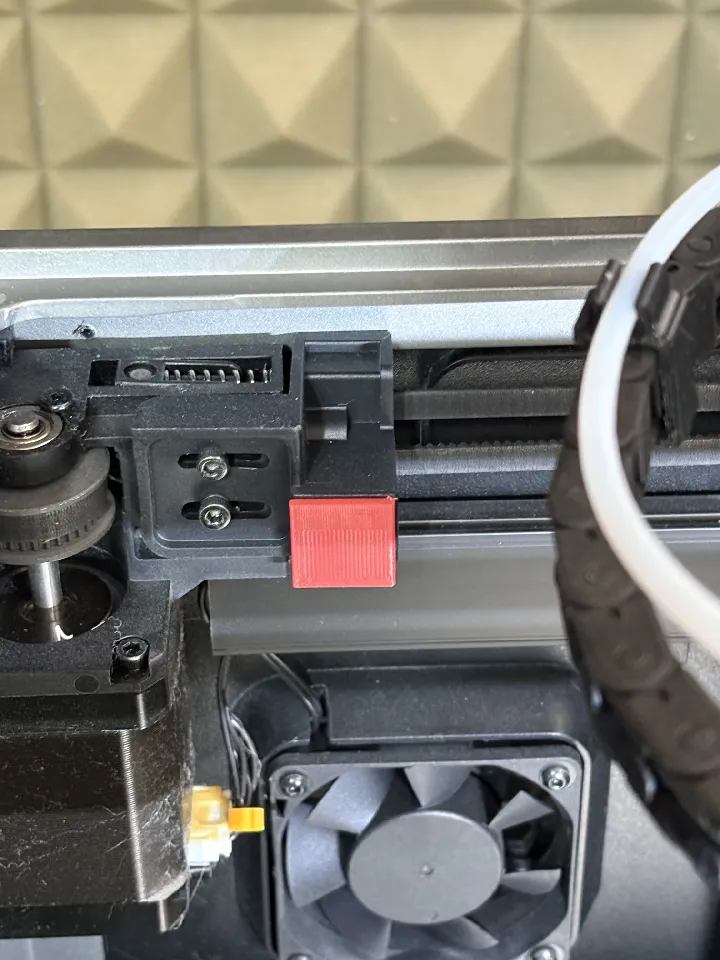
3. Add a printed spacer to trigger the cutter further.
Printed FIle: https://www.printables.com/model/1413084-creality-k1-cutter-mod
You can add couple 2-3mm more to the thickness, this can be done via slicer by adding a similar change shape/cube to increase thickness of the part, or edit using your cad software by extruding onto the face and adding some thickness.
4. Wiring or Connector Issue or Cutter Sensor Issue
Description:
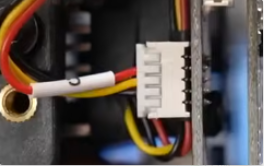
The hall effect sensor wiring may be damaged. If this issue started after installing a new extruder, the connector may have been plugged in with the incorrect orientation. Please double check the orientation as shown below, otherwise if its installed flipped its could have damaged the board/extruder cutter filament sensor.
Solution:
For K1 CFS Upgrade:
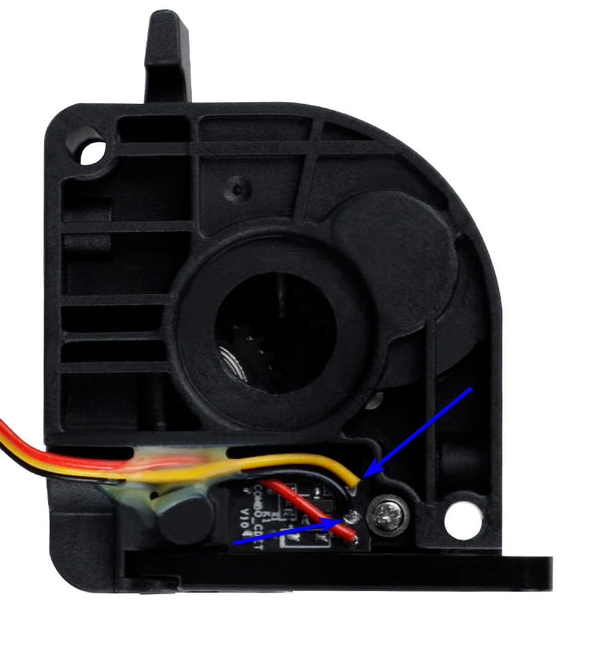
Check the wiring orientation. Incorrect connection may short the hall effect sensor board.Advanced Testing (Use caution to avoid shorting or damage, as the printer is required to be turn on as its hall effect sensor unless you have power bench with 5v supply to sensor directly):
If you have a multimeter, test the signal and ground lines while activating/deactivating the cutter.
Set the multimeter to continuity mode and probe Yellow and GND. With the cutter installed, remove or activate the lever to trigger the sensor. The meter should detect a change in state being open and closed state when state changes.
If no change is detected and the magnet is present, the sensor may be faulty or the wiring depending if you're probing at the sensor. If you probe at end wiring, its may be faulty Toolhead PCB Board and the extruder cutter sensor PCB and wiring are okay.
Wiring:
Black: Share GND (GND/Ground)
Yellow: Signal
Red: Power (5v)
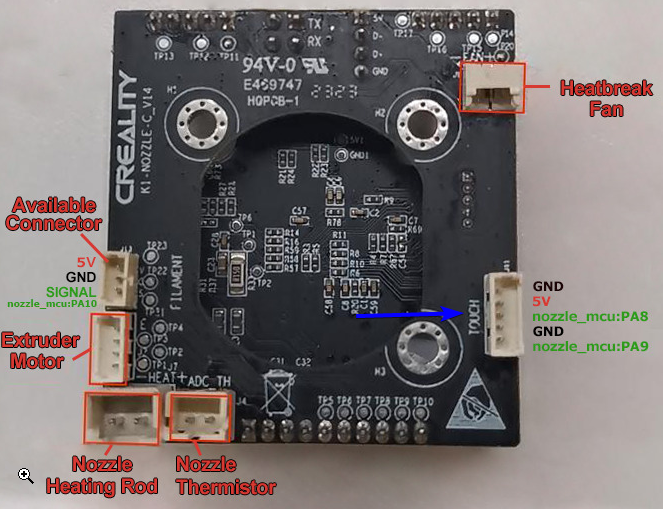
Wiring Test:
Probe the connector at the extruder PCB cutter to the toolhead PCB to confirm continuity. If needed, depin the connector to test individual lines. Take a reference photo before removing pins to ensure correct reassembly.Power Output Test:
Use a multimeter to measure voltage between red and black wires at the toolhead board connector. If there is no five volt output while the printer is powered on, the onboard voltage regulator may be faulty. This may indicate a failure in the board itself. In such cases, the USB toolhead MCU may also not be detected.
5.0 Re-Calibrate/Check Location (Cutter/Purge Bin):
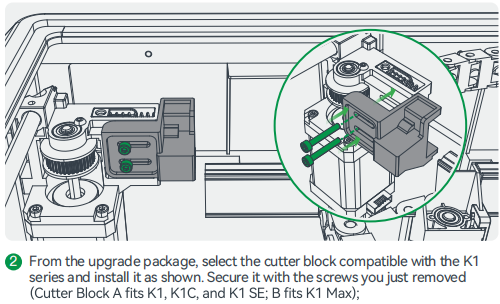
In Step: 2.6 (K1 Max) Install the cutter block and adjust the belt tension, double check if the toolhead can reach that cutter block, if toolhead cannot, please adjust and make sure you install the correct part.
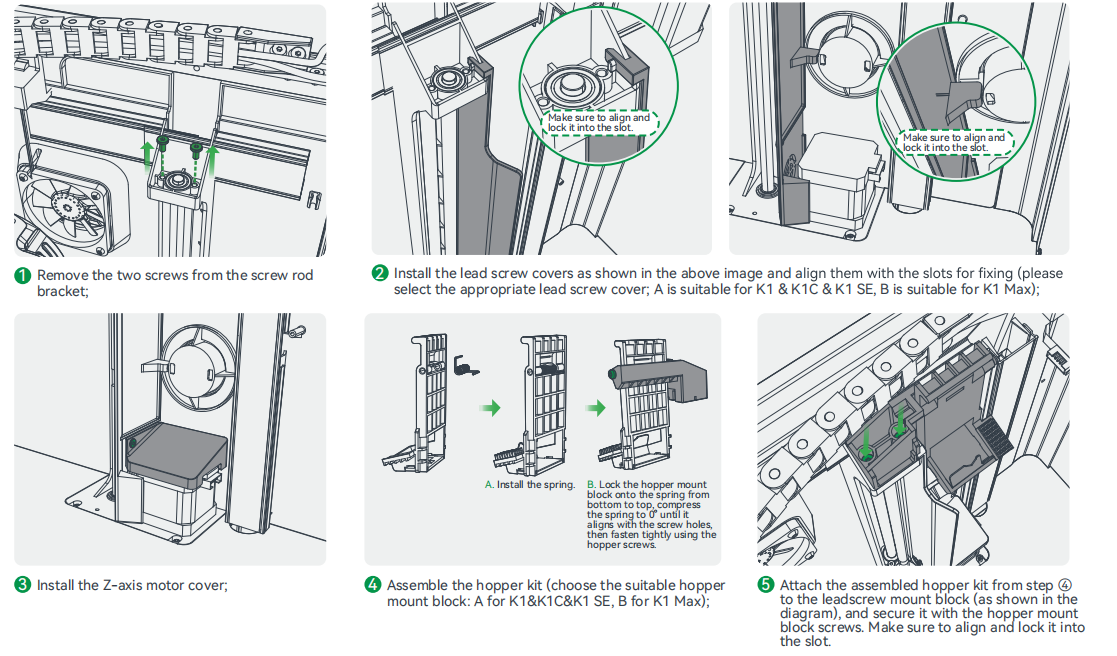
Also double check the purge bin installed part is correctly to your printer model.
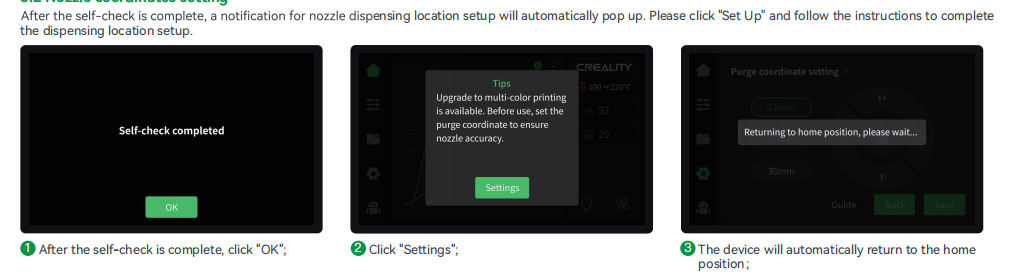
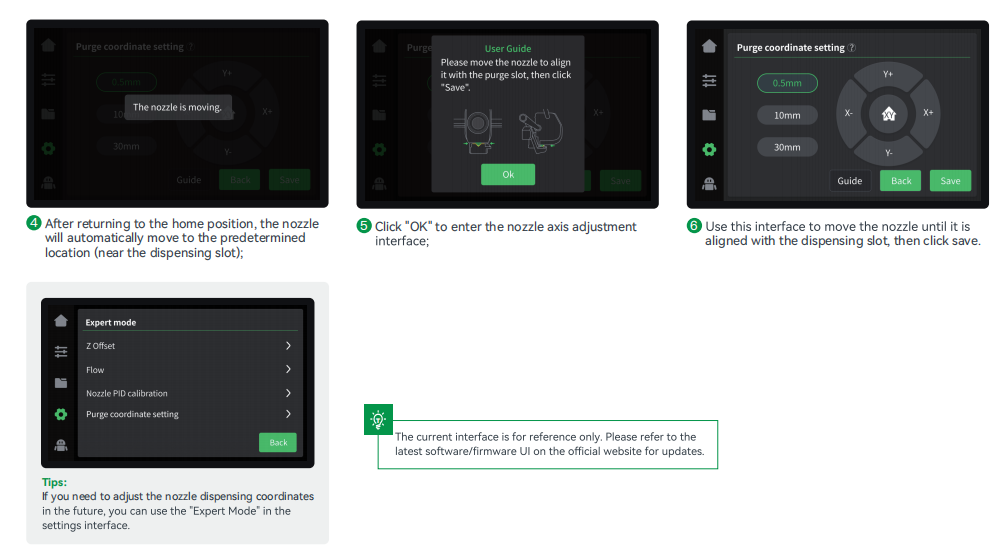
Step 3.2: Under Setting - Expert Mode - Purge Coordinate Setting
More Information: https://wiki.creality.com/en/k1-flagship-series/CFSUK/user-manual#h-32-nozzle-coordinates-setting
Was this article helpful?
That’s Great!
Thank you for your feedback
Sorry! We couldn't be helpful
Thank you for your feedback
Feedback sent
We appreciate your effort and will try to fix the article